Dhan TradingView Webhook Setup: Step-by-Step Guide (2026)
Automate your options trading directly from TradingView to Dhan using free webhooks. This guide walks through every step — from webhook generation and JSON configuration to Pine Script integration and live execution.

Bhavin Javia
Founder, BotJockie · 24+ yrs software · 6+ yrs algo dev
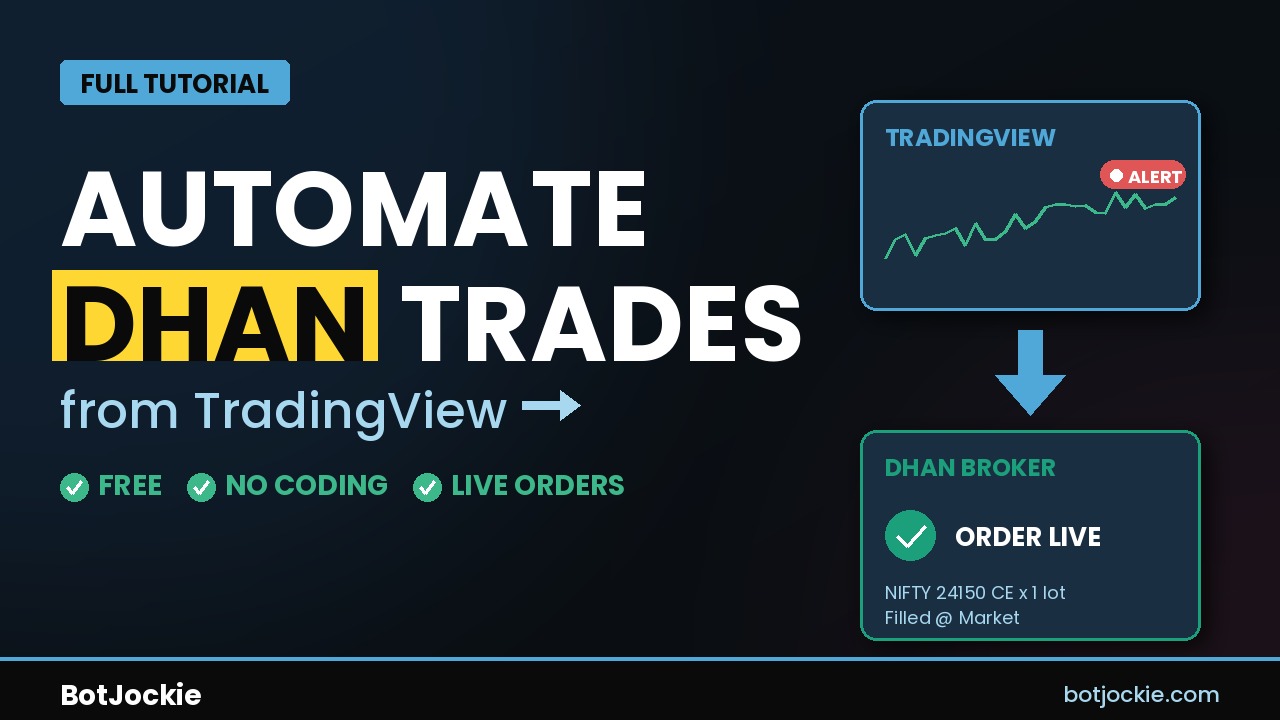
Manual options trading on TradingView is painful. You spot a high-probability setup, it unfolds perfectly on your chart, but by the time you've switched to Dhan and placed the order manually, the entry is 5% gone. Or you're glued to the screen at 9:15 AM instead of doing literally anything else with your morning.
Dhan's free TradingView webhook integration solves this. Your strategy triggers a TradingView alert → the alert automatically sends order details to Dhan → your position is live in seconds. No manual entry, no missed fills, no emotion. This tutorial covers the complete setup — webhook URL, JSON schema, TradingView alert configuration, and Pine Script integration — specifically for options trading on NSE.
If you prefer watching over reading, the video above walks through the same process live. Otherwise, keep scrolling.
1Access the Dhan Webhooks panel
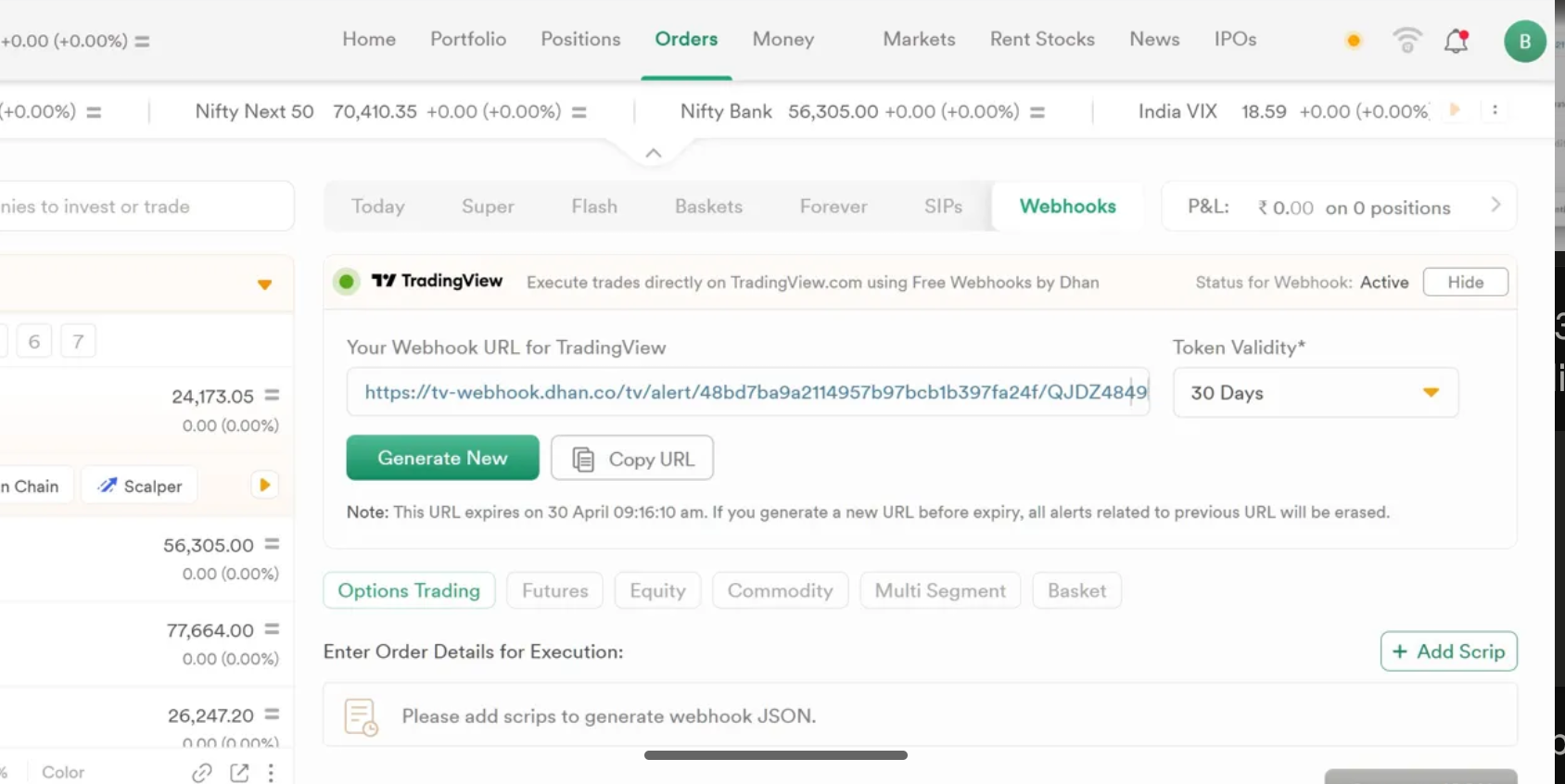
Log into your Dhan trading account at web.dhan.co.
- Click the Orders tab in the top navigation.
- Look for the Webhooks sub-tab — it sits alongside Today, Super, Flash, Baskets, Forever, and SIPs.
- You'll see a section labeled "TradingView" with the description "Execute trades directly on TradingView.com using Free Webhooks by Dhan". This is your control panel.
- Click Manage to open the full configuration view.
2Generate your webhook URL
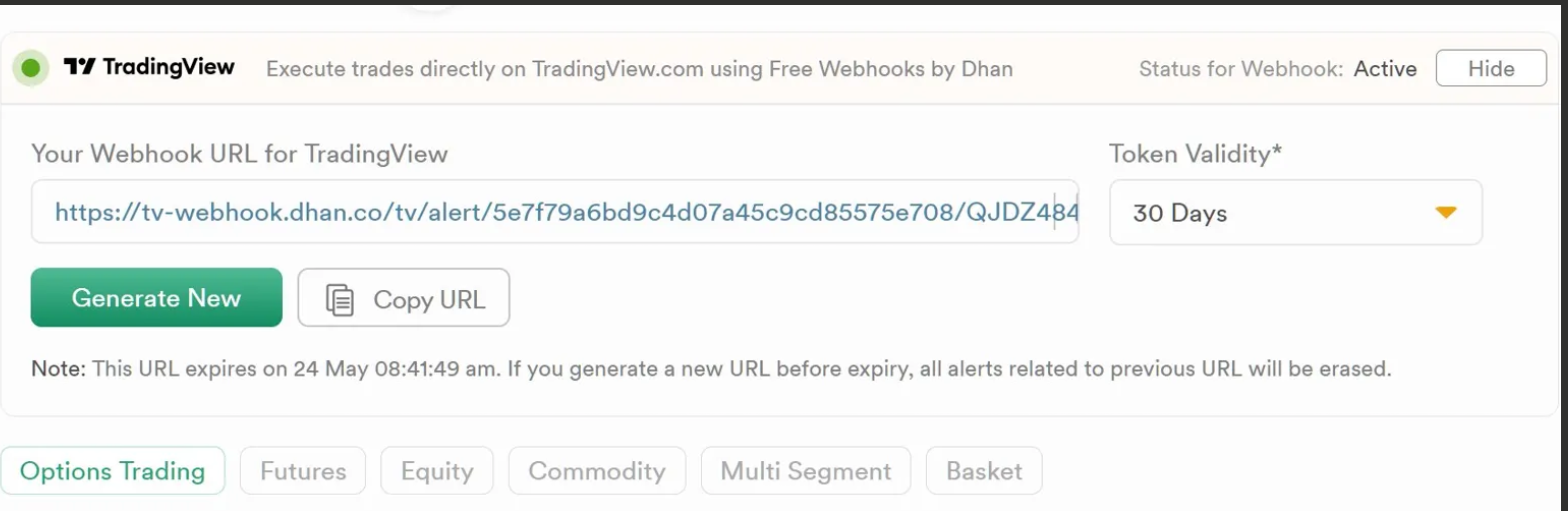
Inside the Manage view, you'll find a section titled "Your Webhook URL for TradingView".
- Click the green Generate New button.
- Confirm the warning prompt: "Generating new URL will disable all existing alerts. Continue?"
- Dhan creates a unique HTTPS endpoint, typically formatted as:
https://tv-webhook.dhan.co/tv/alert/{hash}/{token} - Click Copy URL to copy it to your clipboard.
- Set Token Validity from the dropdown on the right. 30 days is the default and works for most setups — you can regenerate when it expires.
3Configure order details in Dhan
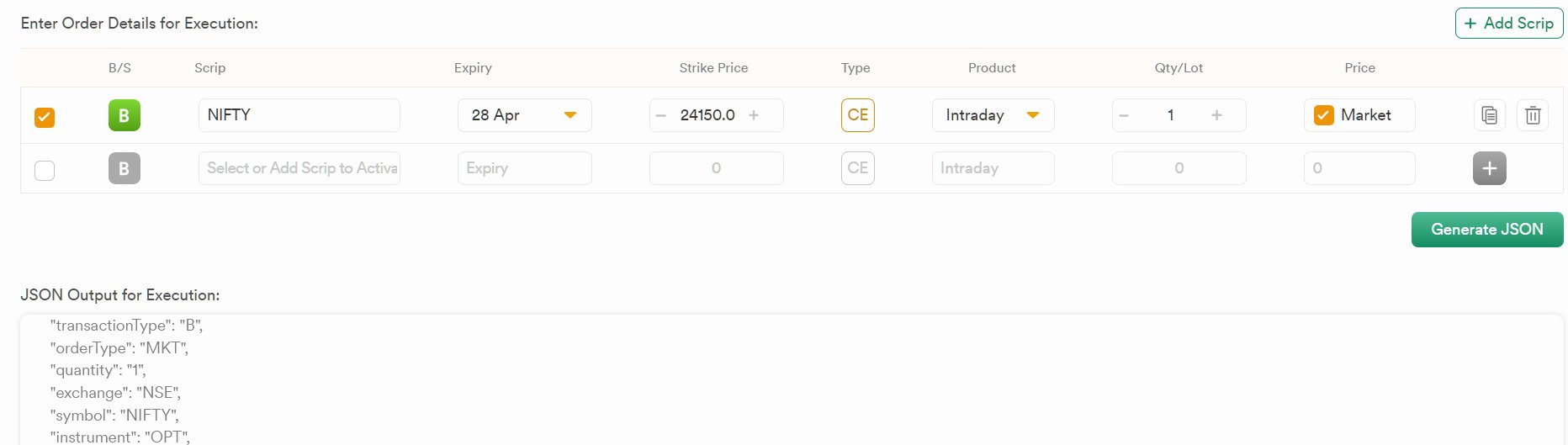
Scroll down to "Enter Order Details for Execution". You'll see tabs for Options Trading, Futures, Equity, Commodity, Multi Segment, and Basket. For this guide, we're focused on the default Options Trading tab.
Add your option scrip
Click + Add Scrip in the top-right of the order table. Fill in the row:
- B/S — Buy or Sell (toggle button)
- Scrip — underlying symbol (e.g., NIFTY, BANKNIFTY, FINNIFTY)
- Expiry — pick from the weekly or monthly expiry dropdown
- Strike Price — e.g., 24150 for NIFTY
- Type — CE (Call) or PE (Put)
- Product — Intraday (MIS) or NRML (overnight margin)
- Qty/Lot — quantity in lots, not total contracts
- Price — Market (tick the checkbox) or Limit (specify price)
Multi-leg orders
For strategies that trade multiple strikes simultaneously (iron condors, straddles, strangles, hedged positions), click + Add Scrip again to add additional rows. Each row becomes a separate leg in the generated JSON. For example:
- Row 1: NIFTY 24150 CE Buy (long call)
- Row 2: NIFTY 24200 CE Sell (short higher strike)
This creates a bull call spread in a single webhook trigger.
4Generate the webhook JSON
Once your order row(s) are configured, click the green Generate JSON button at the bottom-right of the table. A JSON Output for Execution panel appears below with the full payload. For the NIFTY 24150 CE example above, the JSON looks like this:
{
  "secret": "DcWgD",
  "alertType": "multi_leg_order",
  "order_legs": [
    {
      "transactionType": "B",
      "orderType": "MKT",
      "quantity": "1",
      "exchange": "NSE",
      "symbol": "NIFTY",
      "instrument": "OPT",
      "productType": "I",
      "sort_order": "1",
      "price": "0",
      "option_type": "CE",
      "strike_price": "24150.0",
      "expiry_date": "2026-04-28"
    }
  ]
}
Each field in the options JSON:
- secret — token bound to your webhook URL; validates the alert came from your authorised source
- alertType — always
multi_leg_orderfor this setup (works for single and multi-leg) - transactionType —
B(Buy) orS(Sell) - orderType —
MKT(Market) orLMT(Limit) - quantity — lots, not contracts
- symbol — base underlying (NIFTY, BANKNIFTY, FINNIFTY); strike and expiry are separate fields
- instrument —
OPTfor options,FUTfor futures,EQfor equity - productType —
I(Intraday/MIS) orM(Normal/overnight) - option_type —
CE(Call) orPE(Put) - strike_price — numeric string, e.g.
"24150.0" - expiry_date — ISO format
YYYY-MM-DD - price —
"0"for market orders, or limit price as string
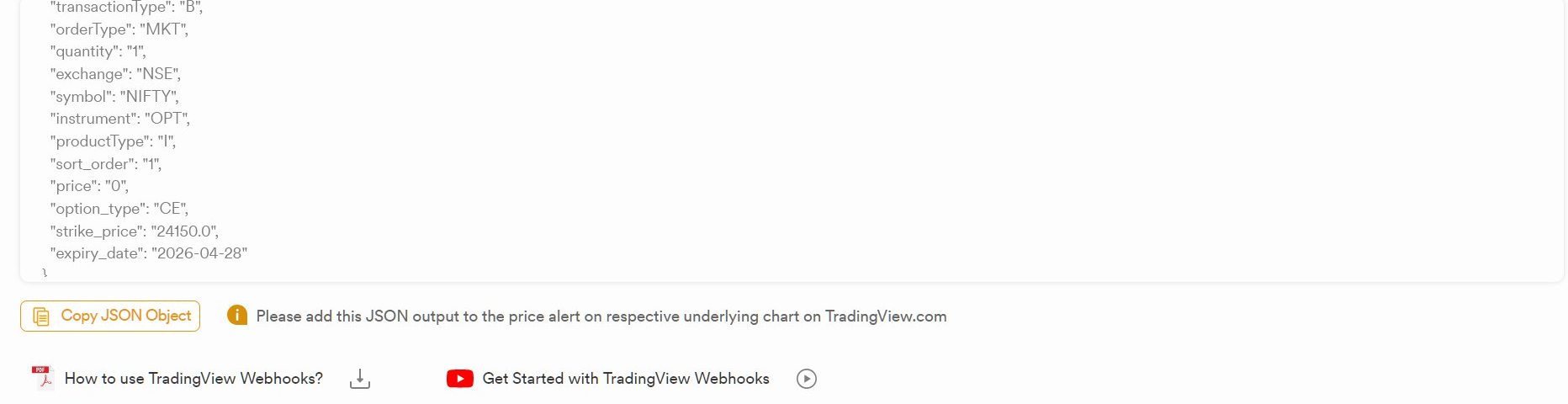
5Create the TradingView alert
Open your TradingView chart for the instrument your strategy trades (e.g., NIFTY 5-minute chart). Apply your indicator or Pine Script strategy first — the alert will be created on top of that.
Open the alert dialog
- Click the Alert (bell with +) icon in the right-hand toolbar, or press
Alt+A(Windows) /⌥A(Mac). - In the Condition dropdown, select your indicator or strategy.
- Set the specific condition (crossover, strategy alert, etc.) that should trigger the order.
- Give the alert a clear name — e.g., "NIFTY 24150 CE Buy".
Paste the webhook URL
In the Notifications tab of the alert dialog:
- Tick Webhook URL.
- Paste your Dhan webhook URL from Step 2 into the field.
Paste the JSON as the alert message
Back in the Settings or Message section of the alert:
- Clear the Message text box completely.
- Paste the JSON you copied from Dhan in Step 4.
- The message field must contain only the JSON — no comments, no extra text. TradingView sends this exact string as the HTTP POST body.
Click Create to save the alert. It will now fire whenever your condition is met and send the order to Dhan for execution.
6Dynamic alerts: equity/futures vs options
The JSON from Dhan is static — it executes the same order every time the alert fires. For strategies that need dynamic behaviour (different sides, different quantities, different strikes), you'll need to build custom JSON templates using TradingView's alert placeholder syntax. How complex that gets depends entirely on what you're trading.
Equity and futures: simple two-template setup
For equity (instrument: EQ) and futures (instrument: FUT), dynamic automation is straightforward. The same symbol handles both sides of the trade — you go long or short on the same contract. A single template with {{strategy.order.alert_message}} swapping between "B" and "S" is enough.
Custom JSON template for equity/futures:
{
  "secret": "DcWgD",
  "alertType": "multi_leg_order",
  "order_legs": [
    {
      "transactionType": "{{strategy.order.alert_message}}",
      "orderType": "MKT",
      "quantity": "{{strategy.order.contracts}}",
      "exchange": "NSE",
      "symbol": "RELIANCE",
      "instrument": "EQ",
      "productType": "I",
      "sort_order": "1",
      "price": "0"
    }
  ]
}
Matching Pine Script:
//@version=6
strategy("Equity Auto", overlay=true)

fastMA = ta.sma(close, 9)
slowMA = ta.sma(close, 21)

if ta.crossover(fastMA, slowMA)
    strategy.entry("Long", strategy.long, alert_message="B")

if ta.crossunder(fastMA, slowMA)
    strategy.entry("Short", strategy.short, alert_message="S")
When crossover fires, {{strategy.order.alert_message}} resolves to "B", Dhan receives a buy order on RELIANCE. On crossunder, it resolves to "S" — same contract, opposite direction. One alert, one JSON template, and you're done.
Options: four separate templates required
Options automation is fundamentally different. You can't just flip "B" to "S" on the same contract, because going "long" and "short" in an options strategy typically means trading different instruments — a call for bullish signals, a put for bearish signals. And closing each position requires a separate exit order on that specific contract.
That means a complete options strategy needs four distinct alert JSON templates:
- Long Entry — Buy a Call (CE) when your long signal fires
- Long Exit — Sell that same Call to close the position
- Short Entry — Buy a Put (PE) when your short signal fires
- Short Exit — Sell that Put to close
Each template needs its own set of resolved values: the correct strike, the correct expiry, the correct option type (CE vs PE), and the correct side (B for entry, S for exit). TradingView's built-in variables alone can't carry all this information — you need to expose your own custom placeholders from Pine Script, for symbol, quantity, strike, expiry, option type, and the "opposite option type" needed for hedges or straddles.
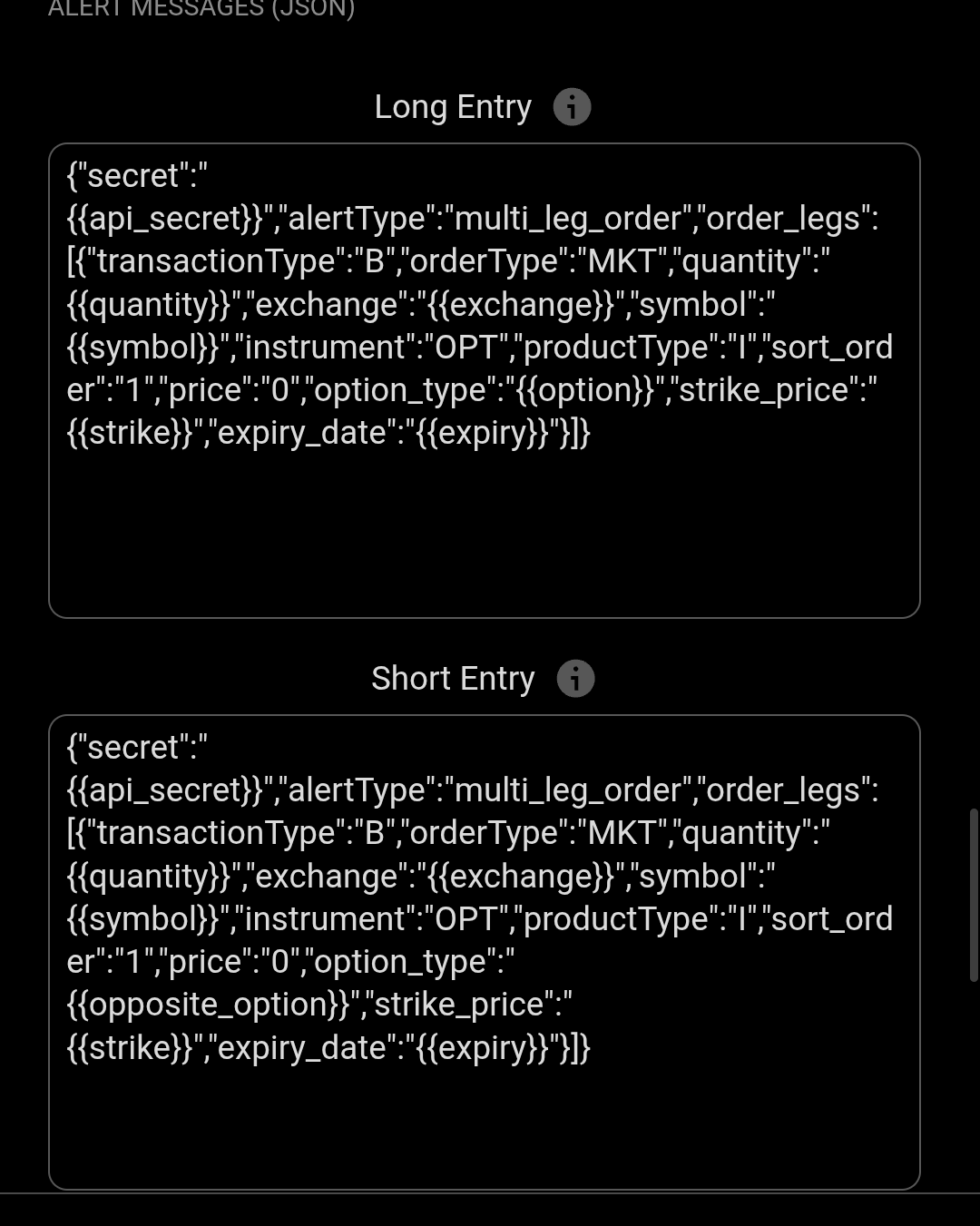
{{api_secret}}, {{symbol}}, {{strike}}, {{expiry}}, {{option}}, and {{opposite_option}} — all computed inside Pine Script and injected at alert-fire time.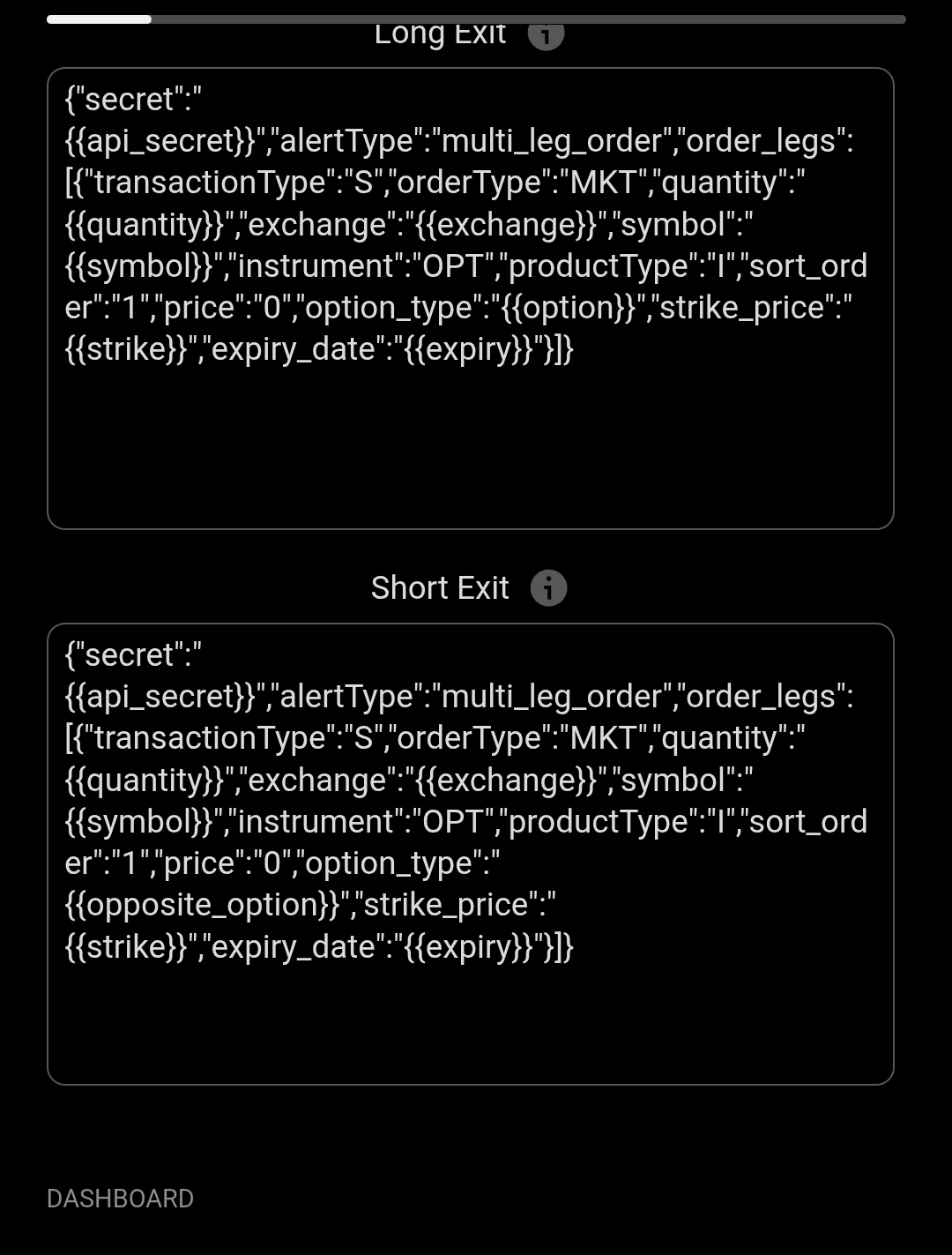
transactionType is "S" (sell to close) and the Short Exit uses {{opposite_option}} to close the put that was opened on Short Entry.Beyond the four templates, your Pine Script also needs to:
- Compute ATM / OTM strikes dynamically from current spot price
- Resolve weekly or monthly expiries programmatically (no hardcoded dates)
- Track open positions so exit alerts reference the correct contract that was actually opened
- Handle partial fills, retries, and missed exits — because a failed exit on options can wipe out weeks of gains
- Expose all these as custom template variables via
alert()calls oralert_messagewith structured payloads
This is where most DIY automation attempts stall. The JSON schema is straightforward; the Pine Script architecture to populate it reliably is not.
Let us build your options auto-trading system
We've built this exact four-template architecture for dozens of options strategies — with dynamic strike selection, expiry resolution, position tracking, and built-in failsafes. You bring the strategy logic; we handle the automation plumbing. Works with Dhan and every major Indian broker.
Book a Call → 💬 Or WhatsApp us →7Test before going live
End-to-end test procedure:
- Set up the alert with your webhook URL and JSON.
- Use a condition that will fire soon — e.g., price crossing a line one tick away from current price. This lets you verify execution without waiting for a real setup.
- Watch your Dhan Orders tab. A new order should appear within 1–3 seconds of the alert firing.
- Confirm the order details match your JSON exactly — same symbol, strike, expiry, side, and quantity.
- If execution is correct, delete the test alert and configure your real strategy alert.
Troubleshooting
If the alert fires on TradingView (check the alert log via the bell icon) but no order appears in Dhan, check in this order:
- JSON syntax — paste your alert message into jsonlint.com to validate. Missing commas or stray quotes are the #1 cause.
- Secret token match — the
secretin your JSON must match the currently active webhook URL. If you regenerated the URL, the old secret is invalid. - Webhook expiry — check the expiry date in the Dhan Webhooks panel. An expired token silently drops incoming alerts.
- Market hours — NSE options trade 9:15 AM to 3:30 PM IST. Outside these hours, Dhan will reject the order.
- Margin — ensure your account has sufficient margin for the order.
- Symbol correctness — verify the
strike_priceandexpiry_datecorrespond to an actively traded option. A non-existent strike will be rejected. - TradingView plan — webhook alerts require TradingView Essential plan or higher. The Basic plan does not support webhooks.
Want this built for you?
Book a free 20-minute strategy call. We'll design a custom Pine Script strategy tailored to your trading style, connect it to Dhan with full automation, and walk you through testing end-to-end.
Book a Call → 💬 Or WhatsApp us →Want our Pro templates for DIY automation?
If you'd rather wire this up yourself, BJ Core and BJ Pro are ready-to-use Pine Script templates with this exact webhook/JSON automation, position sizing, and risk management already built in — you just integrate your own entry logic with an AI chatbot using the included prompt.
See BJ Core / BJ Pro Templates →Wrap-up
Dhan's free TradingView webhook is one of the cleanest broker integrations available to Indian retail traders. No intermediary service, no monthly subscription, no custom server — just a URL, a JSON, and an alert. For static orders or simple equity/futures automation, setup takes under 10 minutes and a single JSON template. For options, the automation layer grows into a proper four-template architecture with dynamic strike selection, expiry resolution, and position tracking — which is exactly the kind of custom build we do day in and day out.
The principles are the same whether you're automating one NIFTY call or a full iron condor. Get the JSON schema right, match the secret, test with small size, and scale up only after you've confirmed three or four live executions match your expectations.